The goal of this introductory Python Data Science tutorial is to illustrate the most commonly used concepts and tools for beginners.
Python Collection Data Types
There are four collection data types in the Python: List/Tuple/Set/Dictionary
The difference lies in:
- Ordered (indexed) vs. Unordered (un-indexed)
- Mutable (the value of an item can be changed) vs. Immutable
- Duplicate vs. Unique (is duplicate items allowed or not)
The definitions are as follows. You can check usage examples in Python Cheatsheet
- List
[...]is a collection that is ordered, mutable and allows duplicate items. - Tuple
(...)is special type of list that is ordered, immutable, and allows duplicate items. - Set
{...}is a collection that is unordered, immutable, with unique items. - Dictionary
{key1:value1, key2:value2,...}is a collection that is unordered, mutable, with unique keys.
NOTE: Python 3.7+, dictionaries are ordered.
Numpy
Numpy is the core library for scientific computing in Python, which provides a high-performance multidimensional array objects and related tools to work with the array.
Import convention:
import numpy as npCreating Numpy Arrays from Python Lists
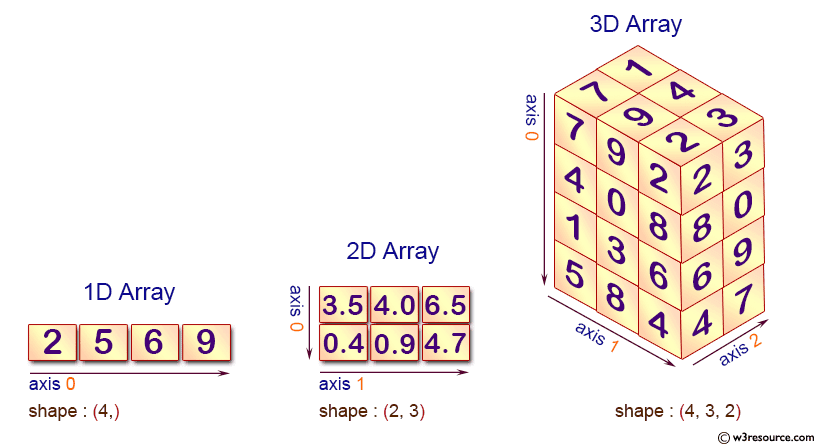
Let's try to create the following arrays from lists. Axes are the dimensions of the array. The default axis is 0, which refers to row and axis 1 refers to column, etc.
# 1D array
a = np.array([2, 5, 6, 9])

# 2D array
b = np.array([
    [3.5, 4.0, 6.5],
    [0.4, 0.9, 4.7],
])

# 3D array
c = np.array([
    [
        [7, 1],
        [9, 4],
        [2, 3],
    ],
    [
        [4, 5],
        [0, 6],
        [8, 0],
    ],
    [
        [1, 3],
        [3, 9],
        [6, 9],
    ],
    [
        [5, 8],
        [8, 8],
        [4, 7],
    ],
]).ndim: number of axes (dimensions) of the array.size: total number of elements of the array.shape: a tuple of integers that indicate the number of elements in each axis.dtype: data type of the array
print(a.ndim, a.size, a.shape, a.dtype)
print(b.ndim, b.size, b.shape, b.dtype)
print(c.ndim, c.size, c.shape, c.dtype)

1 4 (4,) int64
2 6 (2, 3) float64
3 24 (4, 3, 2) int64
Read those shapes carefully, because a lot of Numpy depends on them. (2, 3) is two rows and three columns, and (4, 3, 2) is four blocks of three rows and two columns. (4,) is a one-dimensional array of four elements: the trailing comma is how Python writes a tuple with a single item, not a typo or a missing number. A one-dimensional array is neither a row nor a column, it simply has one axis, which matters as soon as you combine it with a 2D array.
Load from Text File
Numbers can be loaded from a text file using .loadtxt().
For example, the 3d array above can be loaded from numbers.txt.zip.
By default, the delimiter is whitespace. The example below shows how to specify comma as the delimiter.
a = np.loadtxt('numbers.txt', delimiter=',')
a = a.reshape(4, 3, 2)
print(a)

[[[7. 1.]
  [9. 4.]
  [2. 3.]]

 [[4. 5.]
  [0. 6.]
  [8. 0.]]

 [[1. 3.]
  [3. 9.]
  [6. 9.]]

 [[5. 8.]
  [8. 8.]
[4. 7.]]]Numpy Array vs. Python List
- A list can have elements of different types but Numpy array can only have elements of the same type.
- Numpy array enables element-wise computing, such as adding 1 to all elements.
# element-wise computing
a = np.array([1, 2, 3, 4])
b = np.array([5, 6, 7, 8])
print(a + 2)
print(a + b)

[3 4 5 6]
[ 6 8 10 12]- Numpy array has various functions for scientific computing.
a = np.array([1, 3, 5, 9])
b = np.array([
    [3.5, 4.0, 6.5],
    [0.4, 0.9, 4.7],
])
print(a.sum(), a.min(), a.max(), a.mean(), np.median(a), np.std(a))
print(b.sum())
 # adding rows (axis=0) and adding columns (axis=1)
print(b.sum(axis=0), b.sum(axis=1))

18 1 9 4.5 4.0 2.958039891549808
20.0
[ 3.9 4.9 11.2] [14. 6.]- A slice of a Python list is a copy while a slice of a Numpy array is a view (same way of slicing using
[start:stop:step])
For list:
# slices of a Python list are copies of the list
# changing slices DOES NOT change the original list
a = [1, 2, 3, 4, 5]
b = a[2:4]
print(a, b)

b[1] = 9  # change b
print(b)
print(a)  # a does not change

[1, 2, 3, 4, 5] [3, 4]
[3, 9]
[1, 2, 3, 4, 5]
For Numpy array:
# slices of a Numpy array are views of the array
# changing the slices will change the original array!!!
c = np.array([1, 2, 3, 4, 5])
d = c[2:4]  # d is a view of c
print(d)

d[1] = 9  # change d
print(d)
print(c)  # c changed!

[3 4]
[3 9]
[1 2 3 9 5]
use np.copy() to make a copy of a numpy array:
c = np.array([1, 2, 3, 4, 5])
f = np.copy(c)  # make a copy of c
f = f[2:4]
print(f)
f[1] = 20  # change f
print(f)
print(c)  # c is not changed

[3 4]
[ 3 20]
[1 2 3 4 5]- Numpy array is way more faster than Python list for computation
Slicing and Dicing
Python lists are indexed one bracket at a time, so a nested list needs rows[1][2]. A Numpy array takes one bracket with a comma inside, one position per axis:
units_sold = np.array([
    [120, 85, 40, 30],   # downtown
    [200, 95, 55, 10],   # airport
    [ 90, 70, 60, 45],   # campus
])                       # 3 stores x 4 products

print(units_sold[1, 2])       # one number: what the airport sold of product 3
print(units_sold[1])          # one row: everything the airport sold
print(units_sold[:, 0])       # one column: product 1 at every store

55
[200  95  55  10]
[120 200  90]
: means everything on this axis, so units_sold[:, 0] reads as "every store, product 1". That column is the thing plain Python lists cannot give you without a loop, and it is where the name dicing comes from: you cut the table along whichever axis you want.
Ranges work the same as anywhere in Python, start:stop with the stop excluded, and negative numbers count from the end:
print(units_sold[0:2, 1:3])   # first two stores, middle two products
print(units_sold[:, -1])      # the last column

[[85 40]
 [95 55]]
[30 10 45]
One trap worth knowing, because it catches people constantly. Ask for the airport row two different ways and the same four numbers come back, but not in the same container:
print(units_sold[1])      # a single index
print(units_sold[1:2])    # a range that happens to cover one row

[200  95  55  10]
[[200  95  55  10]]
The extra pair of brackets is the whole story. units_sold[1] is a plain run of four numbers that has forgotten it ever came from a table. units_sold[1:2] is still a table, one that happens to have a single row:
print(units_sold[1].shape, units_sold[1].ndim)
print(units_sold[1:2].shape, units_sold[1:2].ndim)

(4,) 1
(1, 4) 2
A single index uses up an axis. You named one position on it, so there is nothing left to vary and it drops out of the result. A range keeps the axis alive, because a range could have held any number of rows, even when this particular one holds a single row.
It matters the moment you do anything that refers to an axis by number:
print(units_sold[1:2].sum(axis=1))   # the airport store's total
print(units_sold[1].sum(axis=1))     # same four numbers, but this one fails

[360]
AxisError: axis 1 is out of bounds for array of dimension 1
The second line has no axis 1 left to sum over. So when code that worked on the whole table suddenly breaks after you pull out one row, this is usually why.
The comma syntax extends to any number of axes. With stores, weeks and products you give three positions:
weekly_units = np.array([
    [[20, 10, 40],     # store 1, week 1
     [22, 12, 35]],    # store 1, week 2

    [[30, 24, 12],     # store 2, week 1
     [28, 20, 18]],    # store 2, week 2
])

print(weekly_units.shape)
print(weekly_units[1, 0, 2])   # store 2, week 1, cookies
print(weekly_units[:, 0, :])   # week 1, every store and product

(2, 2, 3)
12
[[20 10 40]
 [30 24 12]]
Remember that these slices are views, not copies, so assigning into one changes the original array.
Broadcasting
You have already seen broadcasting above: a + 2 added 2 to every element, because the single number 2 was stretched to match the shape of a. The same stretching happens between two arrays of different shapes, which is how you apply a row of values across a whole table.
units = np.array([
    [20, 10, 40],                  # downtown store
    [30, 24, 12],                  # airport store
])                                 # 2 rows (stores) x 3 columns (products)
price = np.array([3.5, 6.5, 2.0])  # the price list: latte, sandwich, cookie

list_sales = units * price
print(units.shape, price.shape)
print(list_sales)

(2, 3) (3,)
[[ 70.  65.  80.]
 [105. 156.  24.]]
Those are sales at list price for every store and every product, with no loop. It worked because price has one number per column, so each price was applied down its own column.
The airport store does not charge list price. Everything there costs 25% more, and that markup is one number per row:
premium = np.array([1.00, 1.25])  # downtown charges list price, airport adds 25%

print(list_sales.shape, premium.shape)
print(list_sales * premium)

(2, 3) (2,)
ValueError: operands could not be broadcast together with shapes (2,3) (2,)
The rule: Numpy lines the two shapes up from the right and compares them one dimension at a time. Two dimensions are compatible when they are equal, or when one of them is 1.
The prices lined up as 3 against 3, so they were stretched down the rows. The two markups line up as 3 against 2, which is neither equal nor 1, so Numpy stops. Remember that (2,) is one axis of two numbers, not a column of two, so Numpy has no way to know you meant them to run down the rows instead of across the columns.
Reshaping the markups into a column says exactly that. Put the two versions side by side and you can see what changed:
print(premium)
print(premium.shape, premium.ndim)

print(premium.reshape(2, 1))
print(premium.reshape(2, 1).shape, premium.reshape(2, 1).ndim)

[1.   1.25]
(2,) 1

[[1.  ]
 [1.25]]
(2, 1) 2
The same two numbers, but the first is a flat line with a single axis, while the second is a real column: two rows, one column, two axes. Only the second one says the numbers belong to the rows.
Now the shapes line up as 3 against 1 and then 2 against 2, so the multiplication works:
sales = list_sales * premium.reshape(2, 1)
print(sales)

[[ 70.    65.    80.  ]
 [131.25 195.    30.  ]]
The downtown row is unchanged and every product in the airport row is 25% higher, which is the sales table you actually want.
Add the aggregation functions from above and you have the numbers you report:
print(sales.sum())        # total sales
print(sales.sum(axis=0))  # sales per product, both stores
print(sales.sum(axis=1))  # sales per store, all products

571.25
[201.25 260.   110.  ]
[215.   356.25]
One shortcut worth knowing. When the per-row numbers come from the array itself, such as dividing each row by its own total, keepdims=True keeps the collapsed axis as a length-1 dimension, so you get the column directly and skip the reshape:
print(sales.sum(axis=1, keepdims=True))
print(sales.sum(axis=1, keepdims=True).shape)

[[215.  ]
 [356.25]]
(2, 1)
Most "why does this not work" moments in Numpy are a shape that did not line up the way you assumed. Print .shape before you debug anything else.
It is worth putting the whole thing side by side. Here is the complete calculation in Numpy, the table and the markup and the total:
units = np.array([[20, 10, 40], [30, 24, 12]])
price = np.array([3.5, 6.5, 2.0])
premium = np.array([1.00, 1.25])

sales = units * price * premium.reshape(2, 1)
total = sales.sum()

print(sales)
print(total)

[[ 70.    65.    80.  ]
 [131.25 195.    30.  ]]
571.25
And here is the same calculation with plain Python lists:
units = [[20, 10, 40], [30, 24, 12]]
price = [3.5, 6.5, 2.0]
premium = [1.00, 1.25]

sales = []
for i in range(len(units)):
    row = []
    for j in range(len(price)):
        row.append(units[i][j] * price[j] * premium[i])
    sales.append(row)

total = 0
for row in sales:
    for value in row:
        total += value

print(sales)
print(total)

[[70.0, 65.0, 80.0], [131.25, 195.0, 30.0]]
571.25
The same answers, but look at what you had to keep in your head: two index variables, and the fact that price is indexed by j while premium is indexed by i. Numpy moves that bookkeeping into the shapes, which is exactly why the price needed no help and the markup needed a reshape. Add one more dimension, say a second week of numbers, and every loop above gains a level, while the Numpy version simply works on one more axis.
Finding Where the Maximum Is
max() and min() give you the value. argmax() and argmin() give you the position, which is often what you actually want, because a position can be looked up in a list of names.
names = ['latte', 'sandwich', 'cookie']
total = sales.sum(axis=0)  # total sales per product, both stores

print(total)
print(total.max(), total.argmax())
print(names[total.argmax()])
print(names[total.argmin()])

[201.25 260.   110.  ]
260.0 1
sandwich
cookieAggregating Over Multiple Axes
axis= also takes a tuple when you want to collapse several axes at once. Read it as which dimensions disappear.
Take the weekly_units array from the slicing section again, stores x weeks x products:
weekly_units = np.array([
    [[20, 10, 40],    # store 1, week 1
     [22, 12, 35]],   # store 1, week 2

    [[30, 24, 12],    # store 2, week 1
     [28, 20, 18]],   # store 2, week 2
])

print(weekly_units.shape)
print(weekly_units.sum(axis=0).shape)       # axis 0 is gone: weeks x products
print(weekly_units.sum(axis=(1, 2)).shape)  # axes 1 and 2 are gone: one number per store

(2, 2, 3)
(2, 3)
(2,)
So collapsing weeks and products leaves one total per store, and collapsing stores and weeks leaves one total per product:
print(weekly_units.sum(axis=(1, 2)))  # total units per store
print(weekly_units.sum(axis=(0, 1)))  # total units per product

[139 132]
[100 66 105]Initial Placeholder Arrays
Create evenly spaced values by step value: (start, stop, step):
>>>> np.arange(1, 10, 2)
array([1, 3, 5, 7, 9])
Create evenly spaced values by number of samples: (start, stop, num-of-samples):
>>>> np.linspace(1, 10, 5)
array([ 1.  ,  3.25,  5.5 ,  7.75, 10.  ])
Create arrays with random numbers
>>>> np.random.random((2, 3))
array([[0.65107703, 0.91495968, 0.85003858],
       [0.44945067, 0.09541012, 0.37081825]])
Create arrays with zeros and ones:
np.zeros ((2, 3))  # 2 rows 3 columns
np.ones ((2, 3, 4))  # 3D array with all ones
See more: DataCamp Numpy Cheatsheet
Pandas
Pandas is a fast, powerful, and flexible data analysis and manipulation tool.
Use the following import convention:
import pandas as pdPandas Series
A pandas series is a one dimensional labeled array (a Python array is only indexed but not labeled):
# a series is an array with labeled index, default to 0, 1, 2...
s = pd.Series([7, 9, 8])

0    7
1    9
2    8
dtype: int64
You can specify index labels:
# series is array with labeled index
s = pd.Series([7, 9, 8], index=['a', 'b', 'c'])

a    7
b    9
c    8
dtype: int64
You can use the label to access the element, e.g. s['c']
Pandas DataFrame
A pandas DataFrame is a two dimensional labeled data structure with columns of potentially different types:
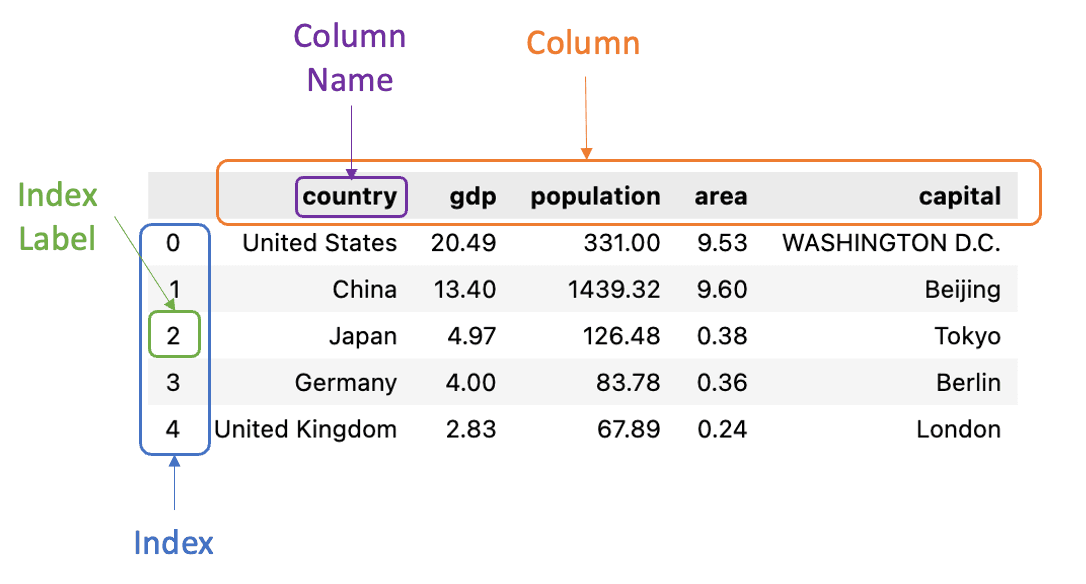
Create a pandas dataframe from a Python dictionary:
# column names by default are keys in the dict
countries = {
    'country': ['USA', 'China', 'Japan'],
    'gdp': [20.49, 13.40, 4.97],
    'population':[331, 1439, 126],
}
df = pd.DataFrame(countries)

  country    gdp  population
0     USA  20.49         331
1   China  13.40        1439
2   Japan   4.97         126
Choose certain columns from keys:
df = pd.DataFrame(countries, columns=['country', 'gdp'])

  country    gdp
0     USA  20.49
1   China  13.40
2   Japan   4.97
Read data from CSV (Comma-separated values) files: (countries-2021.csv.zip ):
The data file is top 10 countries by GDP (in trillions) in 2021 with information on population (in millions), area (in millions square kilometer ), capital, continent.
df = pd.read_csv('countries-2021.csv')
df

          country    gdp  population  area          capital      continent
0   United States  20.49      331.00  9.53  WASHINGTON D.C.  North America
1           China  13.40     1439.32  9.60          Beijing           Asia
2           Japan   4.97      126.48  0.38            Tokyo           Asia
3         Germany   4.00       83.78  0.36           Berlin         Europe
4  United Kingdom   2.83       67.89  0.24           London         Europe
5          France   2.78       65.27  0.64            Paris         Europe
6           India   2.72     1380.00  3.29        New Delhi           Asia
7           Italy   2.07       60.46  0.30             Rome         Europe
8          Brazil   1.87      212.56  8.52         Brasilia  South America
9 Canada 1.71 37.74 9.98 Ottawa North America.index: returns the index labels.columns: returns the column names.info(): prints information about a DataFrame including the index dtype and columns, non-null values and memory usage.
df.info()

<class 'pandas.core.frame.DataFrame'>
RangeIndex: 10 entries, 0 to 9
Data columns (total 6 columns):
 #   Column      Non-Null Count  Dtype
---  ------      --------------  -----
 0   country     10 non-null     object
 1   gdp         10 non-null     float64
 2   population  10 non-null     float64
 3   area        10 non-null     float64
 4   capital     10 non-null     object
 5   continent   10 non-null     object
dtypes: float64(3), object(3)
memory usage: 608.0+ bytes.describe(): prints descriptive statistics for numerical columns excluding NaN values
df.describe()

             gdp   population      area
count  10.000000    10.000000  10.00000
mean    5.684000   380.450000   4.28400
std     6.243788   549.780564   4.51295
min     1.710000    37.740000   0.24000
25%     2.232500    65.925000   0.36500
50%     2.805000   105.130000   1.96500
75%     4.727500   301.390000   9.27750
max 20.490000 1439.320000 9.98000.head(n)/.tail(n): returns the first/last n rows (default n=5)
df.head()

           country    gdp  population  area          capital      continent
0   United States  20.49      331.00  9.53  WASHINGTON D.C.  North America
1           China  13.40     1439.32  9.60          Beijing           Asia
2           Japan   4.97      126.48  0.38            Tokyo           Asia
3         Germany   4.00       83.78  0.36           Berlin         Europe
4 United Kingdom 2.83 67.89 0.24 London EuropeSelecting data in DataFrames using []
- Slicing a DataFrame by rows (you have to specify a range):
df[start:stop] - Slicing a DataFrame by columns:
- one column:
df['column name']or ifdf.column_nameif there are no space in the column name - multiple columns:
df[['column name1', 'column name2',...]]
- one column:
# slice by rows
df[1:3]

  country    gdp  population  area  capital continent
1   China  13.40     1439.32  9.60  Beijing      Asia
2   Japan   4.97      126.48  0.38    Tokyo      Asia
# select one column
df['country'] # same as df.country
0 United States
1 China
2 Japan
3 Germany
4 United Kingdom
5 France
6 India
7 Italy
8 Brazil
9 Canada
Name: country, dtype: object# select multiple columns
df[['country','gdp']]
country gdp
0 United States 20.49
1 China 13.40
2 Japan 4.97
3 Germany 4.00
4 United Kingdom 2.83
5 France 2.78
6 India 2.72
7 Italy 2.07
8 Brazil 1.87
9 Canada 1.71Selecting data in DataFrames using .loc[] and .iloc[]
[] can only do simple data selections by rows and columns. More complicated data selection can be done by using the following methods:
.iloc[]is primarily integer position based (from 0 to length-1 of the axis)
# select rows with index 1, 4, and 6
df.iloc[[1, 4, 6]]

# here 1 and 4 are treated as indexes
# row 4 is NOT included, i.e. UK
df.iloc[1:4, :2]

   country    gdp
1    China  13.40
2    Japan   4.97
3 Germany 4.00.loc[]is primarily label based - NOTE: even numbers are treated as labels!
# here 1 adn 4 are treated as labels
# row 4 is included, i.e. UK
df.loc[1:4, ['country', 'gdp']]

          country    gdp
1           China  13.40
2           Japan   4.97
3         Germany   4.00
4 United Kingdom 2.83Filtering Rows using Masking Expressions
- Filtering using one expression:
df[expression 1]: one expression
# returns countries with GDP greater than 3 trillions
df[df['gdp'] > 3]

         country    gdp  population  area          capital      continent
0  United States  20.49      331.00  9.53  WASHINGTON D.C.  North America
1          China  13.40     1439.32  9.60          Beijing           Asia
2          Japan   4.97      126.48  0.38            Tokyo           Asia
3 Germany 4.00 83.78 0.36 Berlin Europe- Filtering using multiple expressions:
df[(expression 1) & (expression 2) & ...]: multiple masking conditions with AND relationshipdf[(expression 1) | (expression 2) |...]: multiple masking conditions with OR relationship
# returns countries with GDP greater than 2 trillions and population less than 100 millions
df[(df['gdp'] > 2) & (df['population'] < 100)]

          country   gdp  population  area capital continent
3         Germany  4.00       83.78  0.36  Berlin    Europe
4  United Kingdom  2.83       67.89  0.24  London    Europe
5          France  2.78       65.27  0.64   Paris    Europe
7           Italy  2.07       60.46  0.30    Rome    Europe
Derived Columns
You can derive new columns from existing ones:
# calculate GDP per capita (GDP divided by population)
# a trillion has 12 zeros, a million has 6 zeros
df['gdp_per_capita'] = df.gdp * 1000000 / df.population
df

          country    gdp  population  area          capital  gdp_per_capita
0   United States  20.49      331.00  9.53  WASHINGTON D.C.    61903.323263
1           China  13.40     1439.32  9.60          Beijing     9309.951922
2           Japan   4.97      126.48  0.38            Tokyo    39294.750158
3         Germany   4.00       83.78  0.36           Berlin    47744.091669
4  United Kingdom   2.83       67.89  0.24           London    41685.078804
5          France   2.78       65.27  0.64            Paris    42592.308871
6           India   2.72     1380.00  3.29        New Delhi     1971.014493
7           Italy   2.07       60.46  0.30             Rome    34237.512405
8          Brazil   1.87      212.56  8.52         Brasilia     8797.515995
9 Canada 1.71 37.74 9.98 Ottawa 45310.015898Pandas Functions
.min(),.max(),.mean(),.sum(), etc.
df.max()

country             United States
gdp                         20.49
population                1439.32
area                         9.98
capital           WASHINGTON D.C.
continent South America.value_counts(): return a Series containing counts of unique rows in the DataFrame.
df.continent.value_counts()  # this is a Series

Europe           4
Asia             3
North America    2
South America    1
Name: continent, dtype: int64
df.continent.value_counts()['Asia']
3df.continent.value_counts(normalize=True)
Europe 0.4
Asia 0.3
North America 0.2
South America 0.1
Name: continent, dtype: float64.nunique(): return Series with number of distinct elements
df.nunique()

country           10
gdp               10
population        10
area              10
capital           10
continent          4
dtype: int64Sorting
.sort_values() can be used to sort the values, which returns a sorted DataFrame with original DataFrame unchanged.
- use
by='column name'orby=['column 1', column 2']to specify columns to sort - use
ascending=Falseto change ascending vs. descending - use
ignore_index=Trueto label the result with index: 0, 1, …, n - 1. - use
inplace=Trueto make the change to the DataFrame in place
# after the following line the df is NOT changed
# the index is NOT reset
df.sort_values(by='population', ascending=False)

          country    gdp  population  area          capital      continent
1           China  13.40     1439.32  9.60          Beijing           Asia
6           India   2.72     1380.00  3.29        New Delhi           Asia
0   United States  20.49      331.00  9.53  WASHINGTON D.C.  North America
8          Brazil   1.87      212.56  8.52         Brasilia  South America
2           Japan   4.97      126.48  0.38            Tokyo           Asia
3         Germany   4.00       83.78  0.36           Berlin         Europe
4  United Kingdom   2.83       67.89  0.24           London         Europe
5          France   2.78       65.27  0.64            Paris         Europe
7           Italy   2.07       60.46  0.30             Rome         Europe
9          Canada   1.71       37.74  9.98           Ottawa  North America
df1 = df.sort_values(by='population', ascending=False, ignore_index=True)
df1 # the index is reset
country gdp population area capital continent
0 China 13.40 1439.32 9.60 Beijing Asia
1 India 2.72 1380.00 3.29 New Delhi Asia
2 United States 20.49 331.00 9.53 WASHINGTON D.C. North America
3 Brazil 1.87 212.56 8.52 Brasilia South America
4 Japan 4.97 126.48 0.38 Tokyo Asia
5 Germany 4.00 83.78 0.36 Berlin Europe
6 United Kingdom 2.83 67.89 0.24 London Europe
7 France 2.78 65.27 0.64 Paris Europe
8 Italy 2.07 60.46 0.30 Rome Europe
9 Canada 1.71 37.74 9.98 Ottawa North AmericaGroupBy
.groupby() can be used to group the data by different values of one or more categorical columns, then various aggregation functions can be applied to each group.
df.groupby('continent')  # this returns a DataFrameGroupBy object

<pandas.core.groupby.generic.DataFrameGroupBy object at 0x11bff9310>
Sum of GDP, Population, and Area for countries in each continent:
df.groupby('continent').sum()

                 gdp  population   area
continent
Asia           21.09     2945.80  13.27
Europe         11.68      277.40   1.54
North America  22.20      368.74  19.51
South America   1.87      212.56   8.52
# this returns the max in each group for each column
# for Strings max() returns highest alphabetical character
# for example: Japan's GDP is NOT 13.40
df.groupby('continent').max()
country gdp population area capital
continent
Asia Japan 13.40 1439.32 9.60 Tokyo
Europe United Kingdom 4.00 83.78 0.64 Rome
North America United States 20.49 331.00 9.98 WASHINGTON D.C.
South America Brazil 1.87 212.56 8.52 Brasiliadf.groupby('continent') returns a tuple with two elements:
- the first one is the group label, such as 'Asia', 'Europe', etc.
- the second one is the DataFrame for the group
The following example shows how to loop over the groups:
for group, group_df in df.groupby('continent'):
    print(group)
    print('#' * 15)
    print(group_df)
    print('-' * 60)

Asia
###############
  country    gdp  population  area    capital continent
1   China  13.40     1439.32  9.60    Beijing      Asia
2   Japan   4.97      126.48  0.38      Tokyo      Asia
6   India   2.72     1380.00  3.29  New Delhi      Asia
------------------------------------------------------------
Europe
###############
          country   gdp  population  area capital continent
3         Germany  4.00       83.78  0.36  Berlin    Europe
4  United Kingdom  2.83       67.89  0.24  London    Europe
5          France  2.78       65.27  0.64   Paris    Europe
7           Italy  2.07       60.46  0.30    Rome    Europe
------------------------------------------------------------
North America
###############
         country    gdp  population  area          capital      continent
0  United States  20.49      331.00  9.53  WASHINGTON D.C.  North America
9         Canada   1.71       37.74  9.98           Ottawa  North America
------------------------------------------------------------
South America
###############
  country   gdp  population  area   capital      continent
8  Brazil  1.87      212.56  8.52  Brasilia  South America
------------------------------------------------------------
Deletion
.drop() can be used to delete rows or columns (use inplace=True if you want the df to be altered):
df.drop([1, 3, 4])  # delete discrete rows with index 1, 3, 4, default axis=0
df.drop(df.index[3:5])  # delete middle rows
df.drop(['gdp', 'area'], axis=1)  # delete 'gdp' and 'area' columns
df.drop(['population'], axis=1, inplace=True)  # delete 'population' column in place
.reset_index(drop=True) can be used to reset the index from 0 after deletion if needed. drop=True will delete the old index.
Matplotlib
Matplotlib is a comprehensive library for creating visualizations in Python. Version 3.5.1 is used for this tutorial.
Check the version:
import matplotlib
matplotlib.__version__
Basic Matplotlib Concepts
The following picture shows the basic Matplotlib concepts:
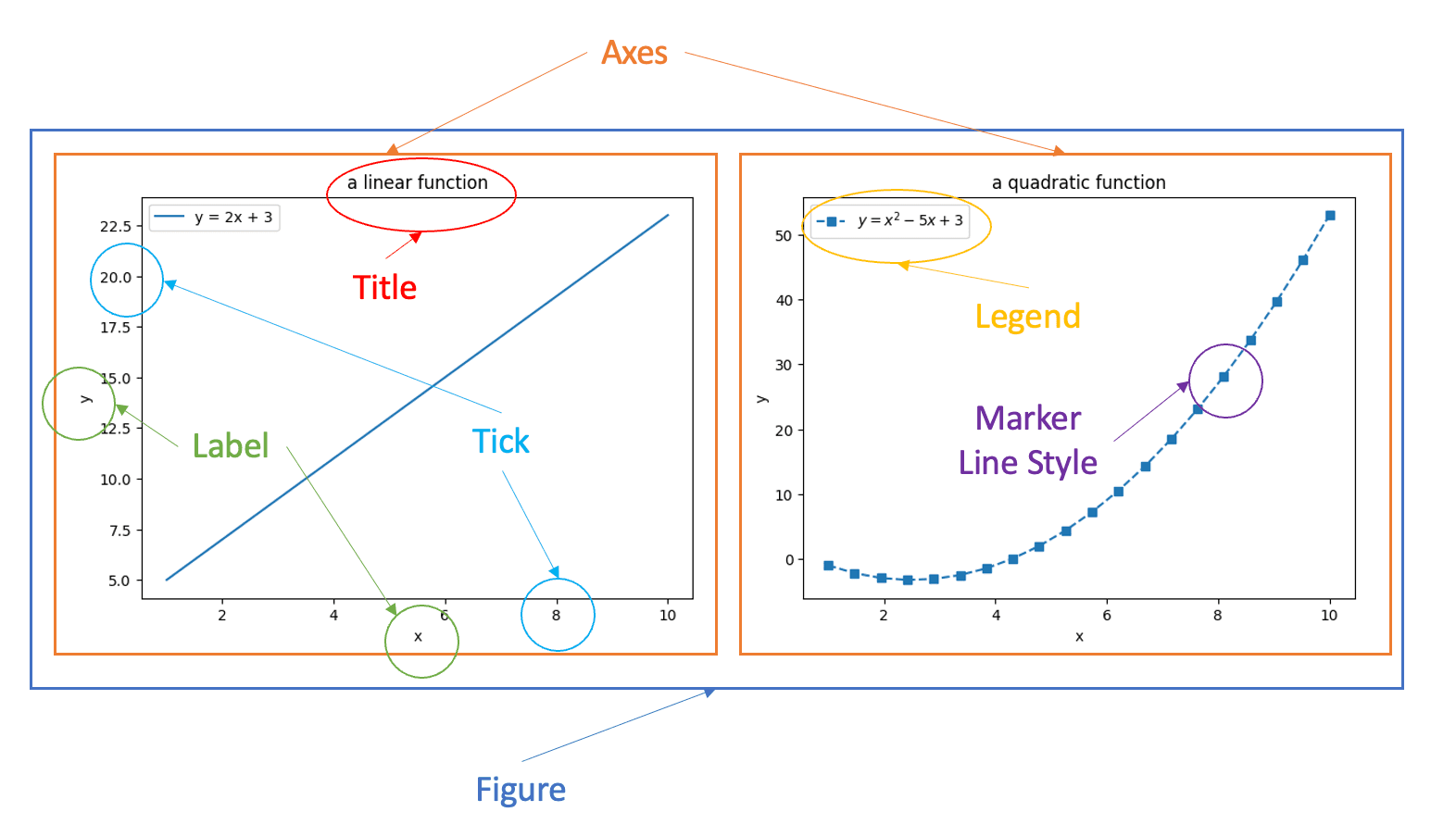
- Figure: the top level container for all the plot elements, which may contain 1 or more Axes.
- Axes: an area where points can be specified in terms of x-y coordinates
- Axis, Title, Label, Tick, Marker, Legend are self-explanatory
matplotlib.pyplot is a collection of functions that make matplotlib work like MATLAB.
import matplotlib.pyplot as pltCreate a figure with one axes:
fig, ax = plt.subplots()  # Create a figure containing a single axes.
x = [1, 2, 3, 4]
y = [1, 4, 2, 3]
ax.plot(x, y);  # Plot some data on the axes.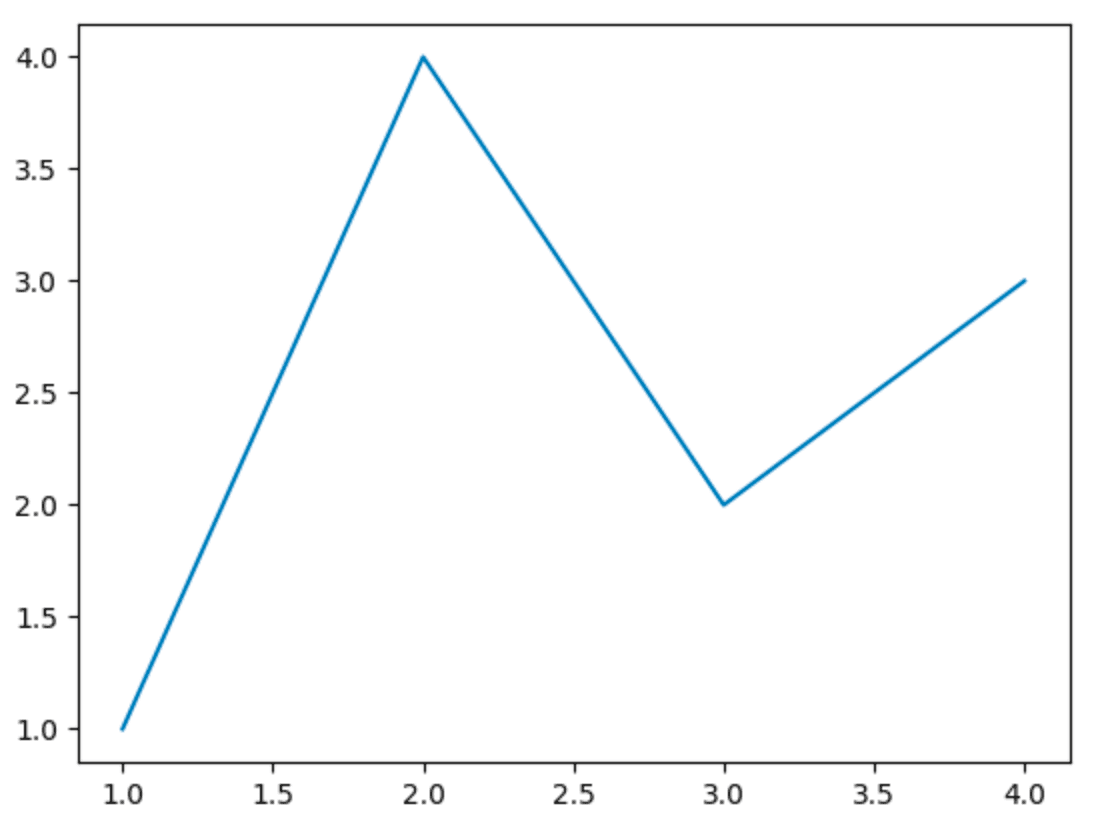
In the next example, I illustrate the followings:
- create data using Numpy for plotting
- set different style sheets
- use
figsize=(5, 5)to change the size of the plot - default is (6.4, 4.8) - specify legend labels (in plain text and LaTex)
- use different line styles
- use different marker styles
- specify colors
- set ticks and tick lables: by default the tick and tick labels are automatically generated.
ax.set_xticks()andax.set_yticks()can be used to customize the ticks and tick labels. For example,ax.set_xticks([1, 3, 7, 8], ['a', 'b', 'c', 'd'])set 4 ticks with corresponding labels for the x-axis. - set plot title
- set axis labels
import numpy as np
plt.style.use('seaborn')  # seaborn style, which looks better than the default one
# plt.style.use('default')  # reset to default style

x = np.linspace(1, 10, 20)  # return 20 evenly spaced numbers between 0 and 10
y1 = 2 * x + 3  # a linear function
y2 = x**2 - 5 * x + 3  # a quadratic function

fig, ax = plt.subplots(figsize=(5, 5))  # one axes of size (5, 5)
ax.plot(x, y1, label='y = 2x + 3')
ax.plot(x,
        y2,
        label='$y = x^2 - 5x + 3$',  # legend label using Latex
        linestyle='dashed',  # line style
        marker='s',  # marker style
        color='red', # line color
        )

ax.set_title('Two Functions')  # plot title
ax.set_xlabel('x')  # x label
ax.set_ylabel('y')  # y label
# ax.set_xticks([1, 3, 7, 8], ['a', 'b', 'c', 'd'])  # change the x ticks and labels
ax.legend()  # show legend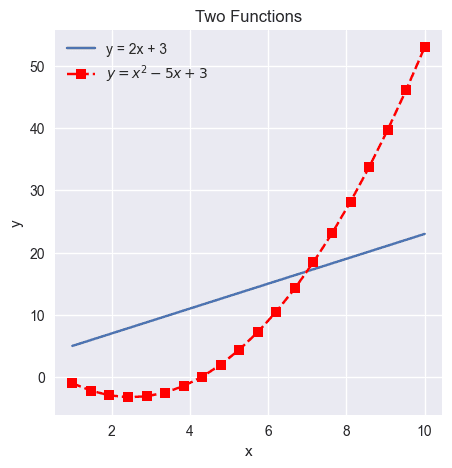
Multiple Axes
A figure can have multiple axes:
- one column/one row of axes: use
ax[0],ax[1], ... to refer to the axes.
fig, ax = plt.subplots(2)  # two rows
ax[0].plot(x, y1)
ax[1].plot(x, y2)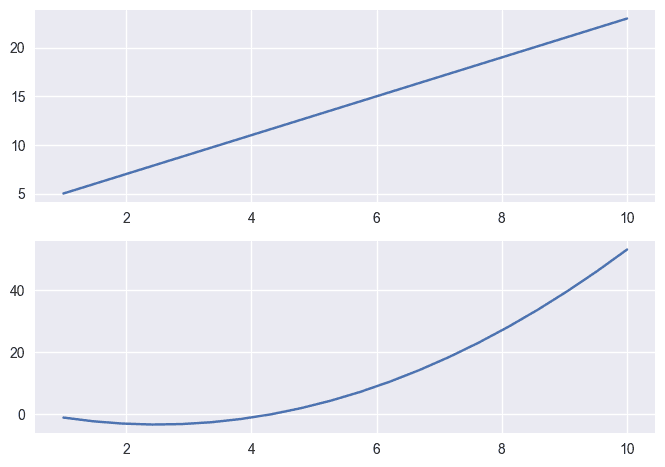
fig, ax = plt.subplots(1, 2)  # one row, two columns
ax[0].plot(x, y1)
ax[1].plot(x, y2)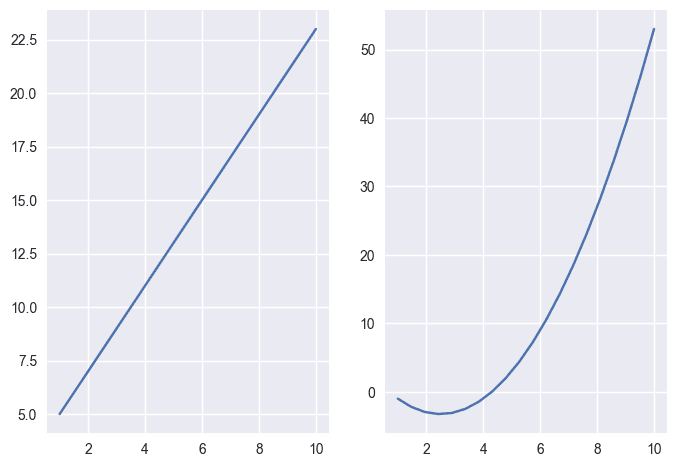
- multiple rows and columns: must use
ax[row, column], such asax[0, 0],ax[0, 1],ax[1, 0], ... to refer to the axes.
fig, ax = plt.subplots(2, 3)  # 2 rows and 3 columns
ax[0, 1].plot(x, y1)
ax[1, 2].plot(x, y2)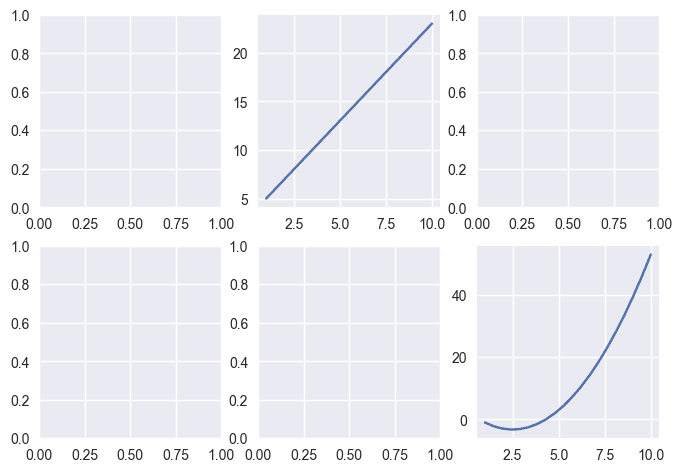
Pandas Charting
Pandas charting is built on top of Matplotlib.
I will use Country GDP dataset (countries-2021.csv.zip) and California housing dataset (housing.csv.zip) to illustrate the charts. You can learn more about the dataset from my Kaggle dataset page.
We introduce the following plots:
- Line Plot
- Bar Plot
- Histogram
- Box Plot
- Scatter Plot
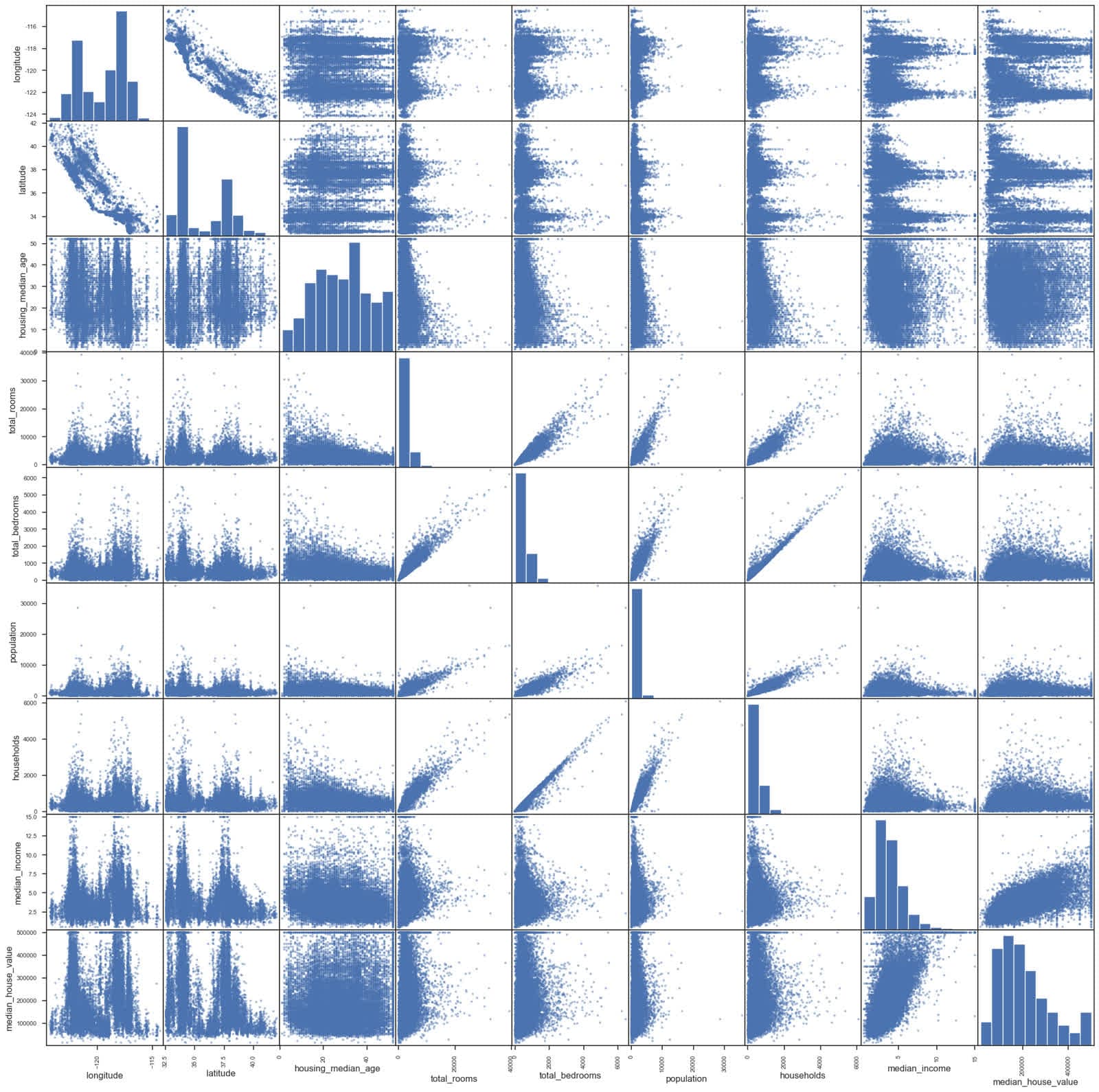
- Scatter Matrix
Line Plot
.plot() (same as .plot.line()) is used to create line plots for all numerical columns with x-axis being the number of rows
import pandas as pd
df_country = pd.read_csv('countries-2021.csv')
df_country.plot()
df_country.plot() is same as the following (figure and axis are implicitly created and used):
fig, ax = plt.subplots()
df_country.plot(ax=ax)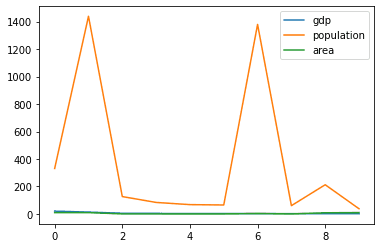
Change the style sheet and only plot one column (country area) with custom ticks:
import matplotlib.pyplot as plt
plt.style.use('seaborn')

df_country.area.plot().set_xticks(df_country.index, df_country.country, rotation=60)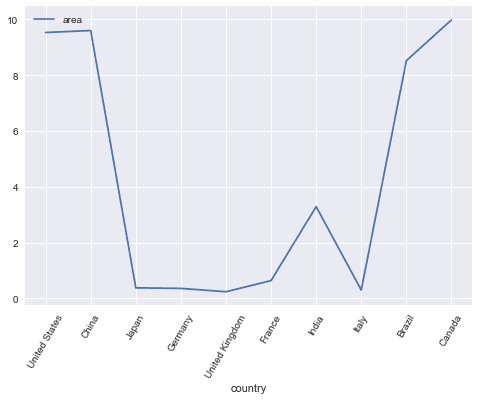
Create a new sorted DataFrame and plot the area with tick labels (ignore_index=True reset the index from 0):
df_sorted_area = df_country.sort_values(by='area', ignore_index=True)
df_sorted_area.area.plot().set_xticks(df_sorted_area.index, df_sorted_area.country, rotation=60)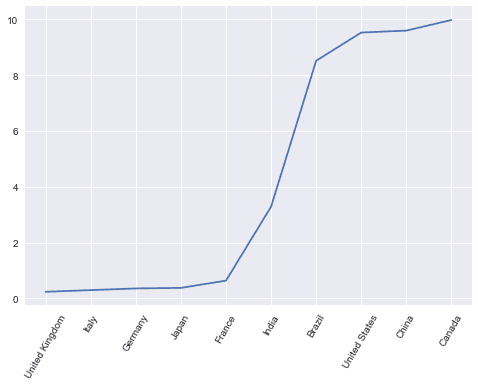
Read the California housing dataset:
import pandas as pd
df_housing = pd.read_csv('housing.csv')
df_housing.info()

RangeIndex: 20640 entries, 0 to 20639
Data columns (total 10 columns):
 #   Column              Non-Null Count  Dtype
---  ------              --------------  -----
 0   longitude           20640 non-null  float64
 1   latitude            20640 non-null  float64
 2   housing_median_age  20640 non-null  float64
 3   total_rooms         20640 non-null  float64
 4   total_bedrooms      20433 non-null  float64
 5   population          20640 non-null  float64
 6   households          20640 non-null  float64
 7   median_income       20640 non-null  float64
 8   median_house_value  20640 non-null  float64
 9   ocean_proximity     20640 non-null  object
dtypes: float64(9), object(1)
Create a line plot for the median house price - think about what patterns you can see from this line chart?
df_housing.median_house_value.plot()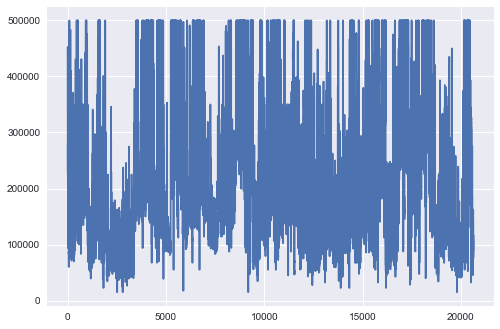
Bar Plot
Bar plot shows a bar for each data point (whereas a line plot uses lines to connect the data points).
We can show the DataFrame on countries sorted by area as a bar plot:
df_sorted_area.area.plot.bar().set_xticks(df_sorted_area.index, df_sorted_area.country, rotation=60)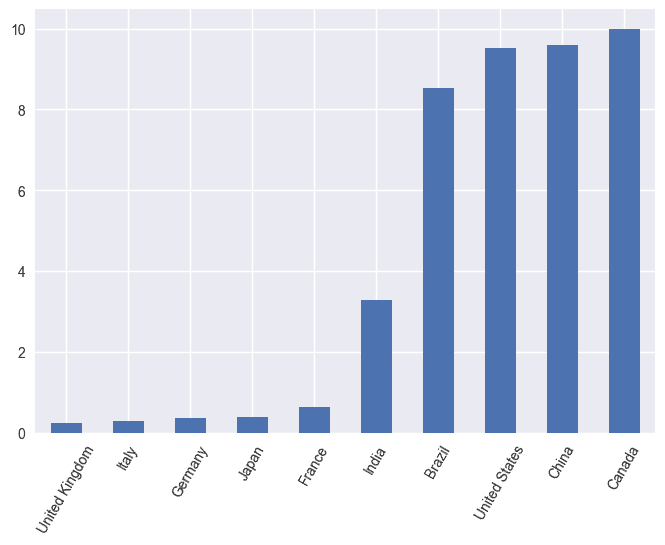
Histogram
.hist() (same as .plot.hist()) is often used to create histograms to check the followings:
- The distributions of the data
- center and spread of the data
- skewness of the data
- presence of outliers
bins=50 can be used to change the number of bins, default is 10
# numerical data
df_housing.median_income.hist(bins=50)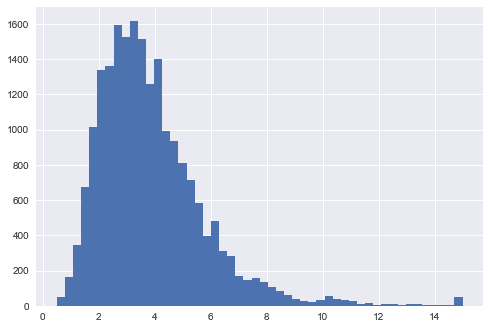
# categorical data
df_country.continent.hist()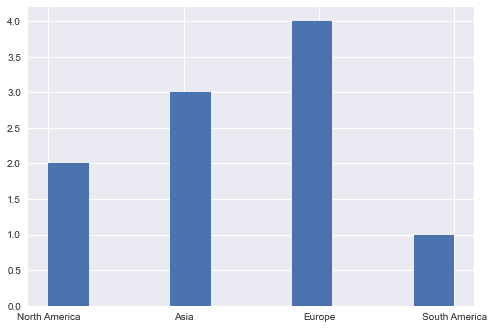
Boxplot
A box plot .plot.box() shows:
- the median (the line in the box)
- the middle 50% of the data (the box)
- the outliers (the dots)
- smallest and largest data points after removing outliers
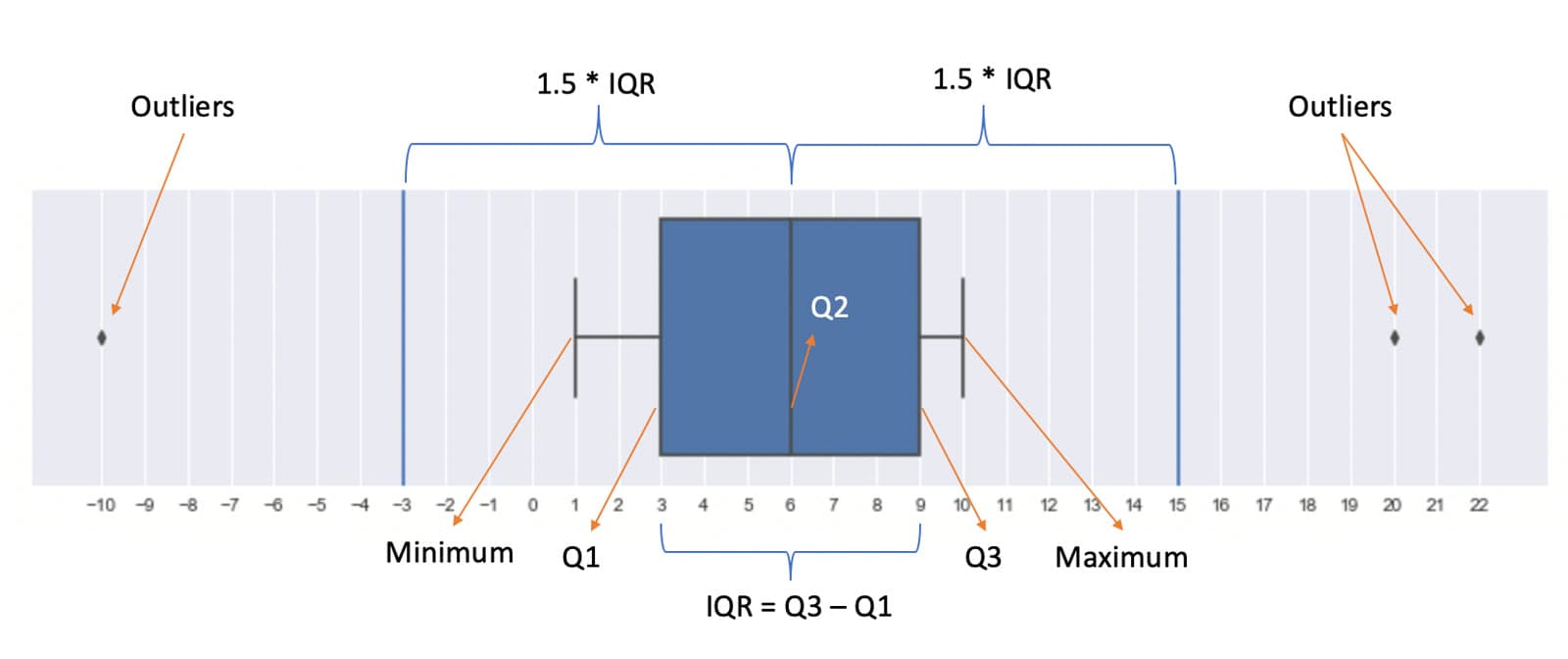
The box plot is constructed in the following steps:
- find the median (the middle value of the dataset or Q2/50th Percentile) of the dataset and divide the data into lower half (smaller numbers) and upper half (larger numbers)
- find the median of the lower half of the dataset, which is called Q1 (First quartile/25th Percentile)
- find the median of the upper half of the dataset, which is called Q3 (Third quartile/75th Percentile)
- Calculate IQR (Interquartile Range): IQR = Q3 - Q1
- Identify outliers (if any): data points that are 1.5 IQR away from the median are considered outliers
- remove the outliers from the dataset and minimum/maximum is the smallest/largest number in the remaining dataset
The following example shows how a boxplot is constructed step by step:
- 13 numbers in total, median is 6
- Q1 is 3: the median of [-10, 1, 2, 3, 4, 5]
- Q3 is 9: the median of [7, 8, 9, 10, 20, 22]
- IQR is 9 - 3 = 6 and 1.5 IQR is 1.5 * 6 = 9
- 1.5 IQR from the median is -3 (6 - 9) and 15 (6 + 9), so -10, 20, 22 are outliers
- minimum/maximum is then 1/10
s = pd.Series([-10, 1, 2, 3, 4, 5, 6, 7, 8, 9, 10, 20, 22])
fig, ax = plt.subplots(figsize=(4, 6))
s.plot.box()
ax.set_yticks(s)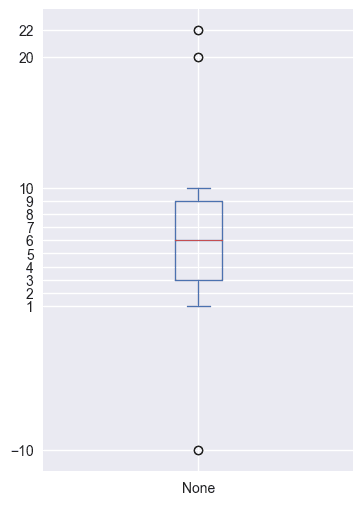
The following example also shows how to have multiple axes for different pandas charts:
fig, ax = plt.subplots(1, 3, figsize=(20,8))
df_housing.median_income.plot.box(ax=ax[0])  # income
df_housing.median_house_value.plot.box(ax=ax[1])  # house price
df_housing.housing_median_age.plot.box(ax=ax[2])  # house age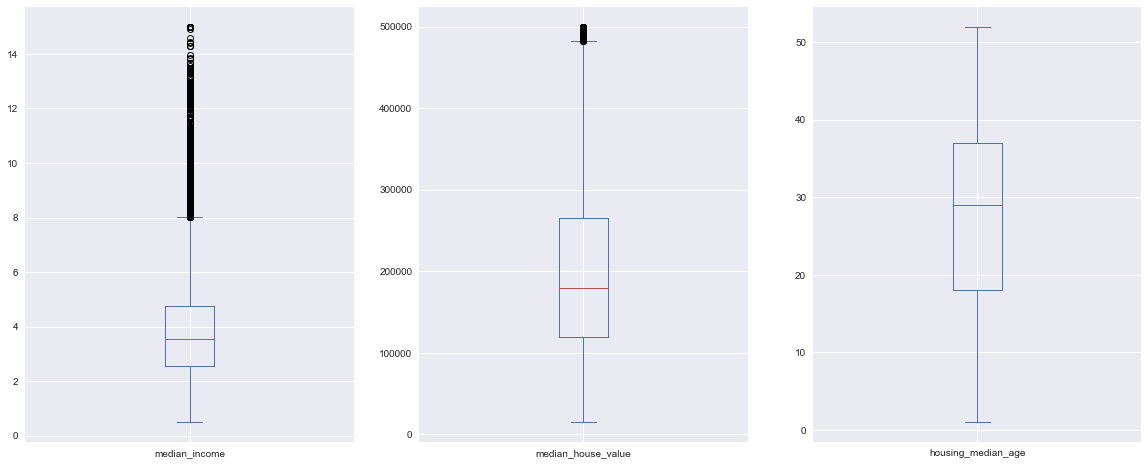
You can also show the boxplots for one feature/column for different groups (like using groupby):
df_housing.boxplot(column=['median_house_value'], by='ocean_proximity', figsize=(10, 8), rot=60)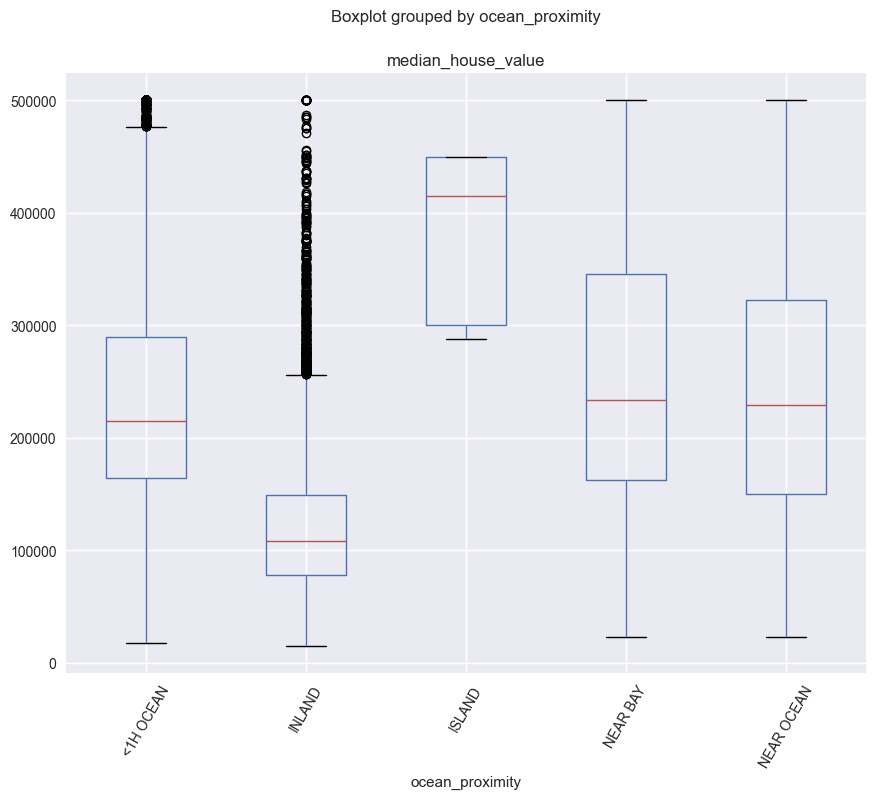
Scatter Plot
Scatter plot .plot.scatter() is often used for correlation analysis between different features. Correlation coefficient is between -1 and 1, representing negative and positive correlations. 0 means there is no liner correlation. Correlation is said to be linear if the ratio of change is constant, otherwise is non-linear.
What insights you can get from the following scatter plot?
df_housing.plot.scatter(x='median_income', y='median_house_value')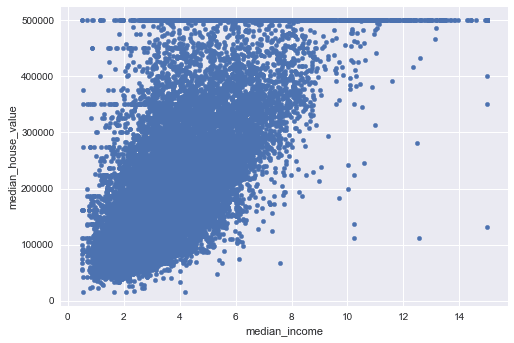
Create a scatter matrix (histogram plots in the diagonal):
pd.plotting.scatter_matrix(df_housing, figsize=(25,25))