
Tailpages (Tailwind + Github Pages) is a Jekyll website template based on TailwindCSS, which can be hosted by Github for free. You can visit the demo site.
This is a technical tutorial to show how to setup the development environment for Tailpages from scratch. Another no-code tutorial shows how you can use Tailpages template to quickly setup your website and blogs without coding, which you can access at medium or blog.
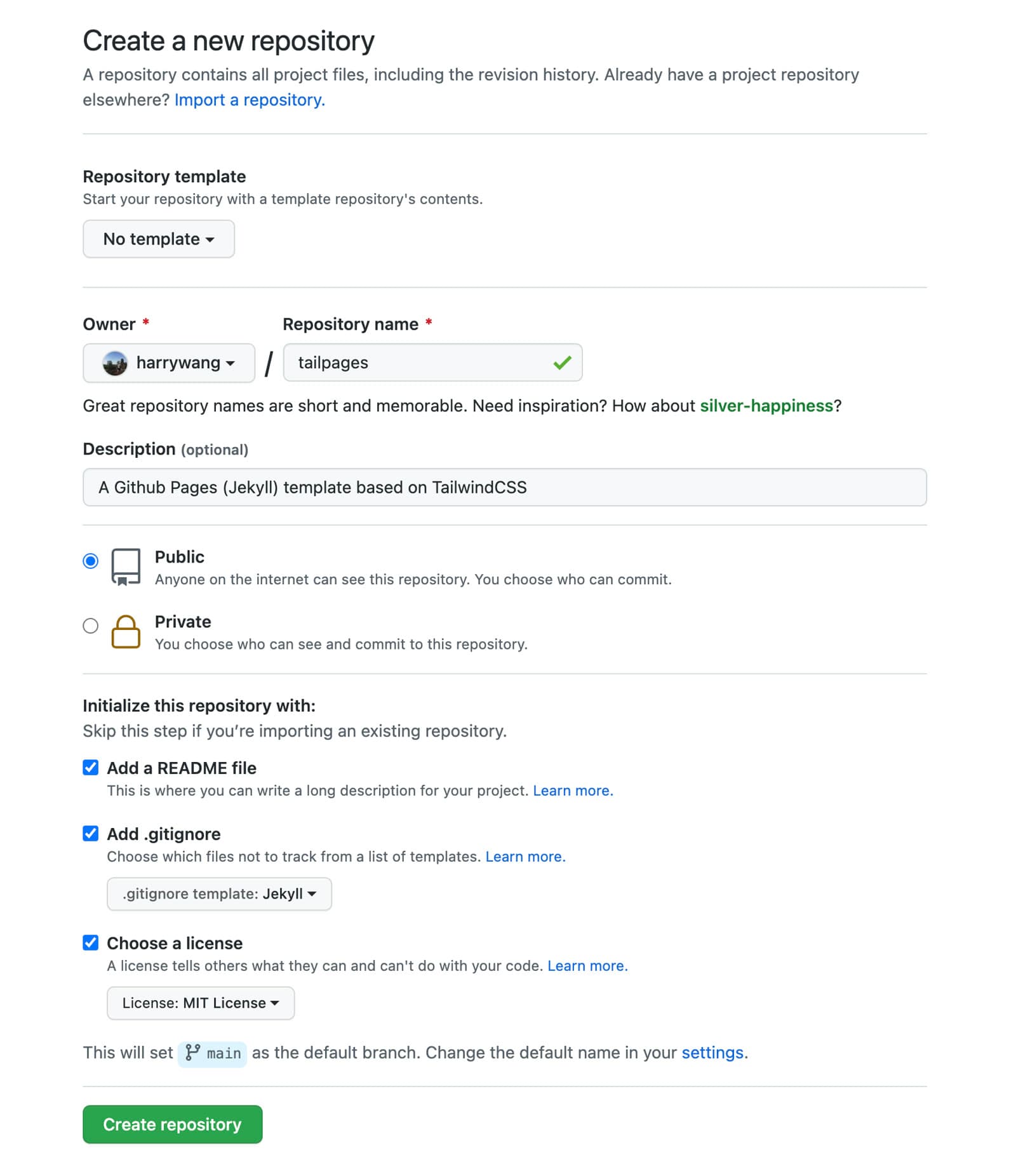
Let's get started by creating an empty Github repo:
Fork and clone the repo on your computer and go to the cloned folder:
git clone https://github.com/harrywang/tailpages.git
cd tailpages
Setup Jekyll
NOTE: for Mac M1 users: follow this to install jekyll ARM compatible version:
xcode-select --install
brew upgrade
brew install rbenv ruby-build
rbenv install 3.1.2
rbenv global 3.1.2
ruby -v
rbenv rehash
echo 'eval "$(rbenv init - zsh)"' >> ~/.zshrc
echo 'eval "$(rbenv init - bash)"' >> ~/.bash_profile
echo 'export PATH="/usr/local/opt/ruby/bin:/usr/local/lib/ruby/gems/3.1.2/bin:$PATH"' >> ~/.zshrc
echo 'export PATH="/usr/local/opt/ruby/bin:/usr/local/lib/ruby/gems/3.1.2/bin:$PATH"' >> ~/.bash_profile
RESTART the terminal and install the gems in the environment (no sudo needed):
gem install jekyll bundler
bundle install
bundle exec jekyll serve
create a new Jekyll site: jekyll new tailpages, which create a tailpages folder within the repo folder:
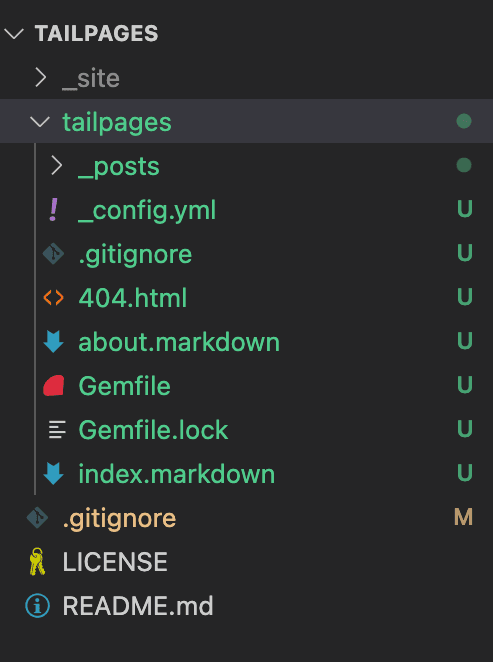
move all files in the tailpages folder created by Jekyll one level up and then remove the folder:
mv tailpages/* .
rm -rf tailpages
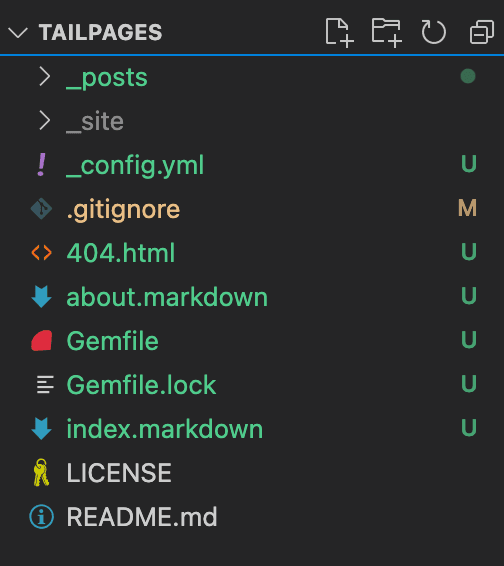
After this, your folder structure should look like:
Open Gemfile file and add a Jekyll plugin we will need for processing Tailwind:
group :jekyll_plugins do
  gem 'jekyll-postcss-v2'
end
Now, you can test the site locally:
- at the root of this repo folder run
bundle install - run
bundle add webrickaccording to https://github.com/github/pages-gem/issues/752 - run
bundle exec jekyll serve - Open it in your browser:
http://localhost:4000
Setup TailwindCSS
Add TailwindCSS:
yarn init -y
yarn add -D tailwindcss@latest postcss@latest autoprefixer@latest postcss-cli
Create tailwind.config.js and postcss.config.js by running yarn tailwindcss init -p
We use Tailwindcss Typography plugin and Inter font family to style Markdown. I also modify the default Typography CSS to make the code style look better.
Add typography plugin and the font:
yarn add -D @tailwindcss/typography
yarn add @fontsource/inter
Then, enable typography plugin, inter font, and customizations by updating tailwid.config.js as follows:
const defaultTheme = require('tailwindcss/defaultTheme')

module.exports = {
  content: [
    './**/*.html'
  ],
  darkMode: 'media',
  theme: {
    extend: {
      typography: {...},
      fontFamily: {
        sans: ['Inter var', ...defaultTheme.fontFamily.sans],
      },
    },
  },

  variants: {
    extend: {},
  },
  plugins: [
    require('@tailwindcss/typography'),
  ],

}NOTE: If this is your first time with Tailwind (just like me), you should know that Tailwind is "just-in-time", i.e., Tailwind CSS is generated on-demand as you develop your html pages/templates instead of being generated in advance at initial build time. For example, if you specify content: ['./**/*.html'] in tailwind.config.js as shown above, the just-in-time engine scans all html files in this folder and generates the used styles into a tailwind output css file. For example, if you never used m-6 in any html file - it won't be outputted into the file.
Now we are ready to generate the Tailwind CSS file. First, create a new CSS file at /assets/css/main.css with the following content:
@tailwind base;
@tailwind utilities;
@tailwind components;
Then run npx tailwindcss -i ./assets/css/main.css -o ./assets/css/tailwind.css --watch to build the css file at ./assets/css/tailwind.css. --watch makes sure that the css is regenerated whenever a change is detected in HTML files.
Now, we can add a default layout HTML file to use Tailwind css at _layouts/default.html. Note that I also use FontAwesome for the icons and highlight.js for code highlighting.
<head>
  ...
  <!-- TailwindCSS and Inter Font-->
  <link rel="stylesheet" href="/assets/css/main.css">
  <link rel="stylesheet" href="/assets/css/tailwind.css">
  <link rel="stylesheet" href="https://rsms.me/inter/inter.css">

  <!-- fontawesome -->
  <link rel="stylesheet" href="https://use.fontawesome.com/releases/v5.15.4/css/all.css"
    integrity="sha384-DyZ88mC6Up2uqS4h/KRgHuoeGwBcD4Ng9SiP4dIRy0EXTlnuz47vAwmeGwVChigm" crossorigin="anonymous">

    <!-- highlight.js -->
   <link rel="stylesheet"
    href="//cdnjs.cloudflare.com/ajax/libs/highlight.js/11.4.0/styles/github-dark-dimmed.min.css">
  <script src="//cdnjs.cloudflare.com/ajax/libs/highlight.js/11.4.0/highlight.min.js"></script>
  <script>hljs.highlightAll();</script>

 </head>
Page Templates
_layouts folder has all page templates, which may include page components, such as Navigation menu, footer, social media icons from files in _includes folder:
default.htmlis the base template that all other templates usehome.htmlis the template for the Homepagepage.htmlis the template for different pagespost.htmlis the template for blog poststag.htmlis the template for the tag page
Customize Homepage and Add Pages/Blogs
You can refer to part I of this tutorial for how to customize the homepage and add new pages/blogs.
Github Pages Settings
you have to change baseurl and url in _config.yml to make the site work for Github Pages:
baseurl: "/tailpages" # your repo name
url: "https://harrywang.github.io" # replace this with your username
Now, you can test the site: jekyll serve and open http://127.0.0.1:4000/tailpages/ note now the address includes the baseurl, you should see the markdown file is styled with beautiful TailwindCSS.
Host with Github Pages
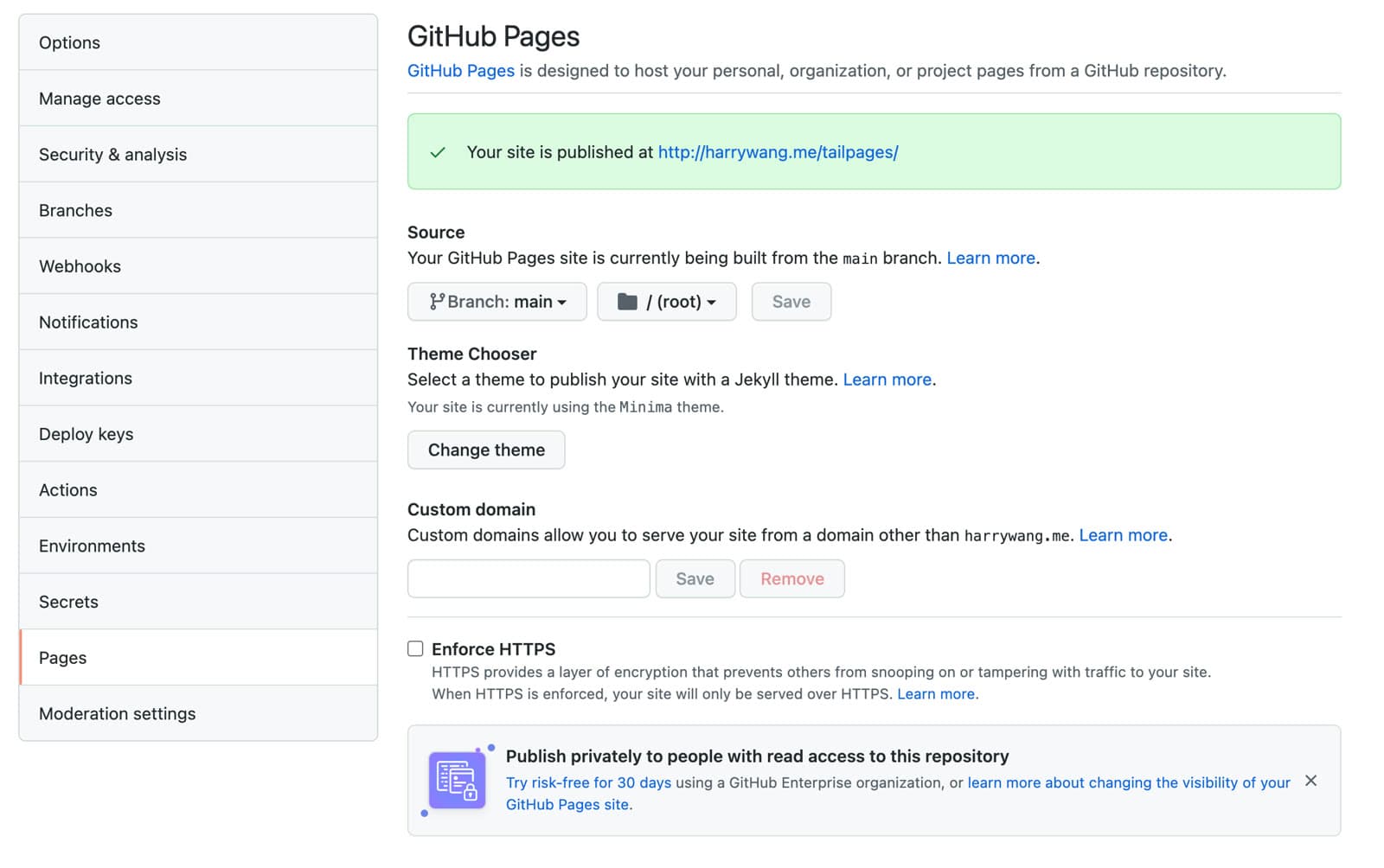
You just need to commit all changes and push to the repo. Then, enable Github Pages and you should be able to visit your site at https://<username>.github.io/<your-repo>, such as https://harrywang.github.io/tailpages (note that I used a custom domain in the following screenshot):
References
I referred to the following tutorials and code repos to develop this tutorial:
- https://medium.com/@mauddev/jekyll-tailwind-netlify-9496352b49ee
- https://medium.com/@mehdi.h/using-jekyll-with-tailwindcss-on-github-pages-50c3d8401230
- https://sergiokopplin.github.io/indigo
- https://github.com/creativetimofficial/notus-js
- https://longqian.me/2017/02/09/github-jekyll-tag/
- https://nikitagoncharuk.com/blog/my-custom-code-style-for-typography-by-tailwindcss-highlightjs/
- https://tjaddison.com/blog/2020/08/updating-to-tailwind-typography-to-style-markdown-posts/