
This tutorial shows how to set up Clash Verge Rev on macOS to access the open internet, and how to route terminal traffic through the proxy — something the system proxy toggle alone does not handle.
Install Clash Verge
Clash Verge Rev is an open-source proxy client built on the Mihomo (Clash Meta) core. Install it with Homebrew:
brew install --cask clash-verge-revOr download the latest .dmg from the releases page.
Import a Subscription
You need a subscription URL from a proxy provider. The provider gives you a link to a config.yaml that contains the server nodes.
In Clash Verge, go to Profiles (订阅), paste the subscription URL, and click Import. The home page then shows your profile with usage and expiration info.
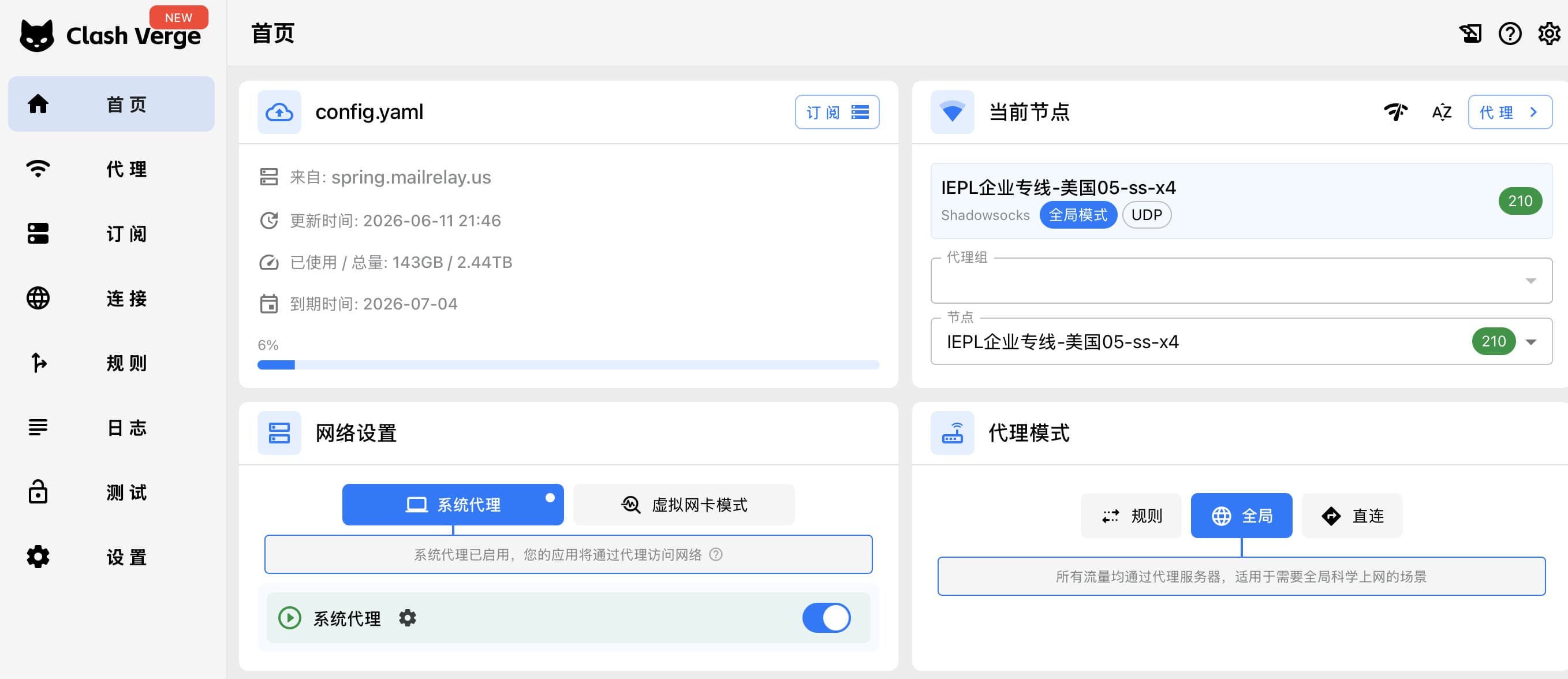
On the home page (首页), configure three things:
- System Proxy (系统代理) — turn this on so macOS routes app traffic through Clash. This is what makes browsers work.
- Proxy Mode (代理模式) — choose one:
- Rule (规则): traffic is routed based on rules — domestic sites go direct, blocked sites go through the proxy. Best for daily use.
- Global (全局): all traffic goes through the proxy.
- Direct (直连): nothing goes through the proxy.
- Current Node (当前节点) — pick a server node. Lower latency (the green number) is better.
Check the Port
Go to Settings (设置) and note the Port (端口设置) — Clash Verge defaults to 7897 (older Clash clients used 7890). You'll need this for the terminal setup below.
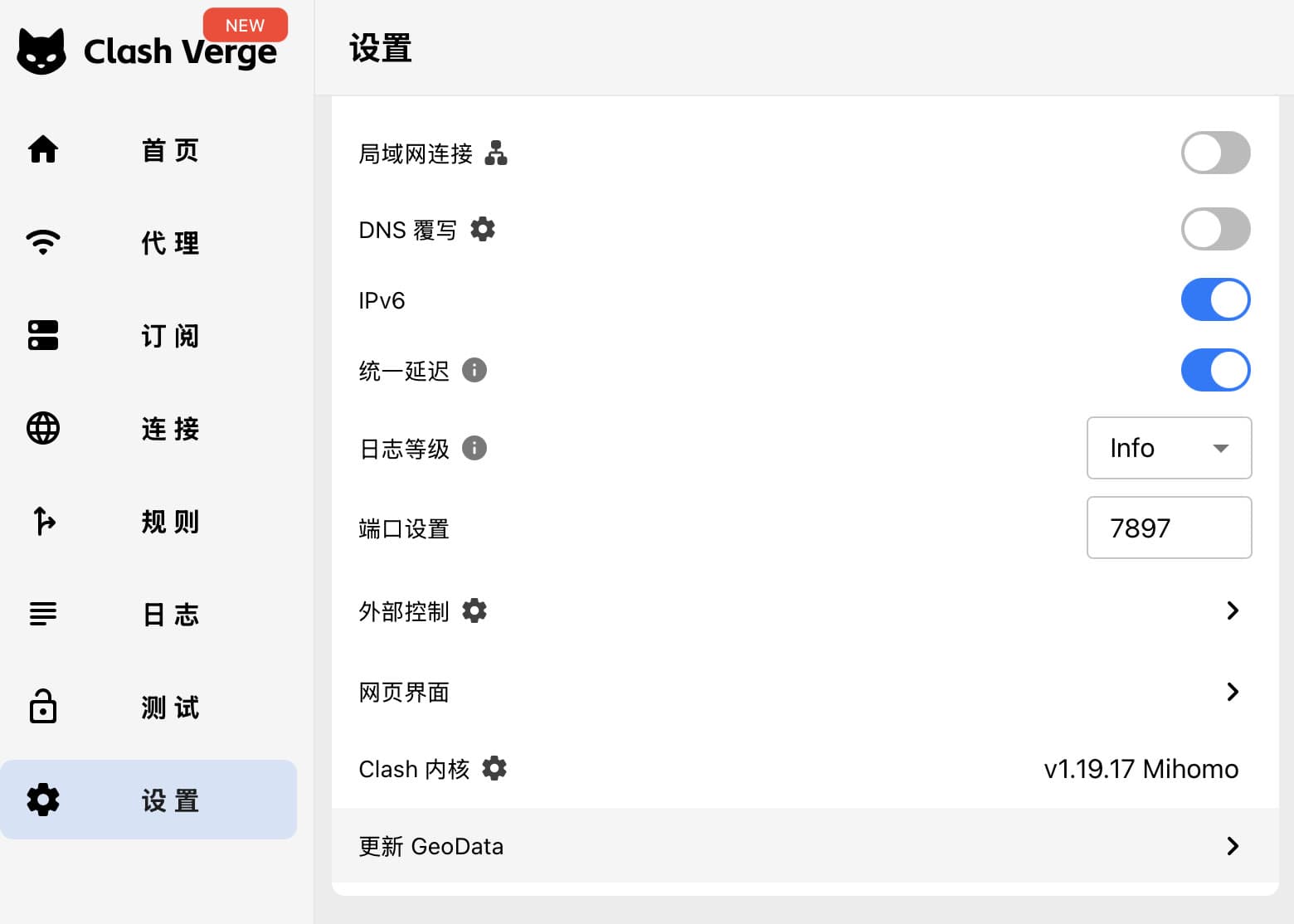
At this point, browsers and most GUI apps work — verify by visiting a blocked site.
Route Terminal Traffic Through the Proxy
Enabling the system proxy does not affect most command-line tools: curl, git, pip, npm, etc. read proxy settings from environment variables, not from macOS system preferences. So your browser may work while git clone still hangs.
The fix is to set the proxy environment variables in your shell. Add these functions to ~/.zshrc:
proxyon() {
  export http_proxy=http://127.0.0.1:7897
  export https_proxy=http://127.0.0.1:7897
  export all_proxy=socks5://127.0.0.1:7897
  echo "proxy on"
}

proxyoff() {
  unset http_proxy https_proxy all_proxy
  echo "proxy off"
}
Make sure the port matches the one in Clash Verge's settings. Then reload your shell:
source ~/.zshrcNow you can toggle the proxy per terminal session with proxyon and proxyoff.
Test the Setup
Compare your public IP with the proxy off and on:
proxyoff
curl ifconfig.me      # shows your real IP

proxyon
curl ifconfig.me      # should show a different (foreign) IP
If the two IPs are different, your terminal traffic is going through Clash. If they're the same, the terminal isn't routing through the proxy — double-check that Clash Verge is running and the port number matches.
Note that the environment variables only apply to the current shell session — open a new terminal tab and you start with the proxy off, which is usually what you want: keep direct connections for speed and turn the proxy on only when a command needs it.
Make the Proxy Always On
If you find yourself typing proxyon in every new tab, flip the default: call it at the end of ~/.zshrc so every new shell starts proxied.
# auto-enable proxy in every new shell
proxyon
You can still run proxyoff in any individual tab when you need a direct connection — for example, to reach domestic sites faster or anything the proxy would slow down.
Proxy for Claudian in Obsidian
Obsidian is a GUI app, so it never inherits your shell's proxy variables — the Claudian plugin's Claude SDK calls will fail even when your terminal is proxied. Claudian has its own setting for this: go to Settings → Claudian → Environment → Custom variables and add:
HTTPS_PROXY=http://127.0.0.1:7897
HTTP_PROXY=http://127.0.0.1:7897
ALL_PROXY=socks5://127.0.0.1:7897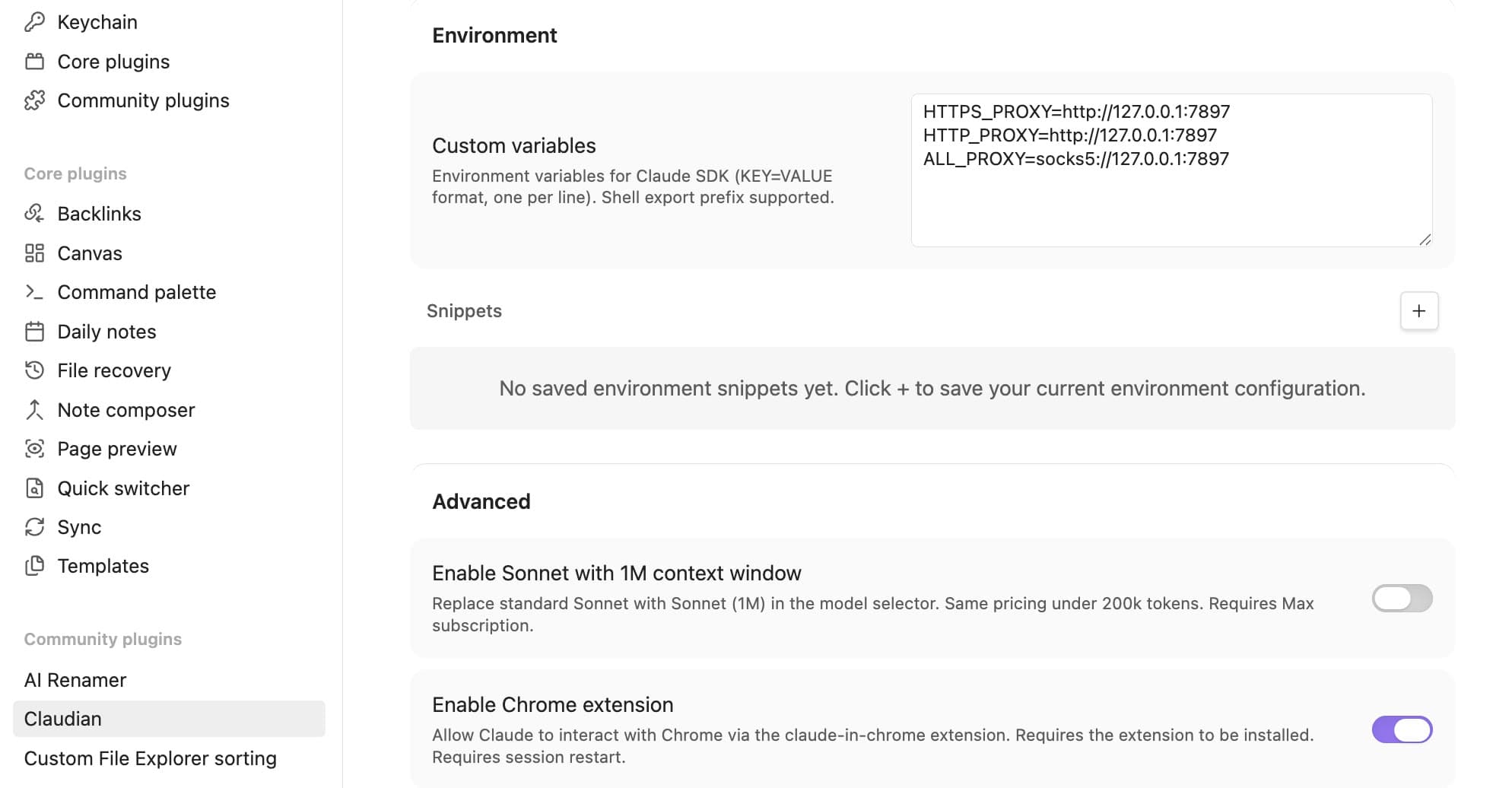
Note these are the uppercase forms — the Claude SDK reads those, unlike the lowercase ones most CLI tools use. Restart the Claudian session after saving for the variables to take effect.
Proxy for Claude Code in Zed and Suzuri
Zed — and Suzuri, my fork of it — run Claude Code as an external agent over ACP (the Agent Client Protocol). The agent is a child process of the editor, so it inherits the editor's environment, and the editor doesn't have a proxied one: on macOS the zed/suzuri command launches the app through LaunchServices rather than as a child of your shell, exactly like clicking the icon in the Dock. proxyon never reaches it.
Zed's own top-level "proxy" setting doesn't help here either — that covers Zed's internal HTTP client, not the processes Zed spawns.
The fix is to attach the variables to the agent itself. Open ~/.config/zed/settings.json (Suzuri shares Zed's config directory) and add an env block to your Claude entry under agent_servers:
{
  "agent_servers": {
    "claude-acp": {
      "type": "registry",
      "env": {
        "HTTPS_PROXY": "http://127.0.0.1:7897",
        "HTTP_PROXY": "http://127.0.0.1:7897",
        "NO_PROXY": "localhost,127.0.0.1,::1"
      }
    }
  }
}
Keep whatever keys are already in that entry — default_config_options and the like — and add env alongside them. claude-acp is the id of the registry-installed Claude agent; if yours differs, use the key already in your file.
There is no ALL_PROXY here, unlike the Claudian setup above: Claude Code does not support SOCKS proxies. Port 7897 is Clash Verge's mixed port, which serves plain HTTP too, so http://127.0.0.1:7897 is the right value even though your shell's all_proxy points at that same port over SOCKS.
Restart the editor after saving. Settings reload live, but the agent process keeps whatever environment it was spawned with. Then start a Claude thread and run /status — the Proxy row shows the active URL, and flags a value it cannot parse. A common mistake is writing 127.0.0.1:7897 without the http:// scheme, which fails at startup.
Turning It Off
Unlike proxyon/proxyoff, this setting is always on. If Clash isn't running, Claude Code fails to connect rather than falling back to a direct connection. Two ways to switch it off.
Temporarily, keep the block and set NO_PROXY to *, which bypasses the proxy for every request:
"env": {
  "HTTPS_PROXY": "http://127.0.0.1:7897",
  "HTTP_PROXY": "http://127.0.0.1:7897",
  "NO_PROXY": "*"
}
Permanently, delete the env block and leave the rest of the agent entry intact.
Either way, restart the editor for the change to take effect, and check the Proxy row in /status to confirm.
Apple Mail: "An SSL Error Has Occurred"
If every account in Apple Mail goes offline at once — a warning triangle on each inbox and a dialog reading An SSL error has occurred and a secure connection to the server cannot be made — the proxy is the cause, and the fix isn't the one you'd guess.
Two things combine. First, Clash's System Proxy doesn't only set HTTP and HTTPS in macOS Network settings; it also sets a system-wide SOCKS proxy. Check it:
scutil --proxyHTTPEnable and HTTPSEnable capture only HTTP traffic, but SOCKSEnable : 1 captures all TCP — so Mail's IMAP (port 993) and SMTP (587) get pulled through Clash too, even though neither is web traffic.
Second, in Global (全局) mode all of that goes through whichever single node is selected. If that node doesn't carry mail ports, every account fails at the same moment, which is what the row of triangles is telling you.
You can confirm it with two commands. Direct first:
curl -v --noproxy '*' --max-time 15 "imaps://imap.mail.me.com:993" -u x:xThat should reach TLS handshake, Server hello and SSL certificate verify ok. Now the same request through Clash:
curl -v -x http://127.0.0.1:7897 --max-time 15 "imaps://imap.mail.me.com:993" -u x:xWhen the node is at fault you get HTTP/1.1 200 Connection established — the tunnel opens fine — and then:
error:1404B42E:SSL routines:ST_CONNECT:tlsv1 alert protocol versionThe proxy connected and the TLS handshake died at the far end. That is exactly what Mail surfaces as an SSL error.
Switch to Rule (规则) mode and Mail comes back. Rule mode also works for Claude Code, so there is no reason to sit in Global.
Not Every Node Carries Mail
Mode isn't the whole story — the node matters too. On my provider, mail works through IEPL企业专线-美国01-ss-x4 and fails through BGP智能路由-美国08-家宽-ss-x2, even though both are US exits with near-identical latency (277ms and 239ms).
The difference is the line type. An IEPL 企业专线 is a leased private circuit: a transparent TCP tunnel, so any port passes. A BGP 智能路由 … 家宽 node is a relay over residential broadband, and residential lines almost always filter mail ports — providers block 25, 465, 587, and 993 so their address pool doesn't get blacklisted for spam. The tunnel opens; the mail port goes nowhere.
Latency tells you nothing about this. A node can be fast and still refuse to carry IMAP. When mail breaks, try a different node before you start editing configuration.
Pick a Node in a Supported Region for Claude Code
Claude Code adds its own constraint: Anthropic doesn't serve every region, so a 香港 exit gets rejected even though the tunnel itself is healthy — the request goes out and comes back refused, which looks like an auth failure rather than a geography problem.
A 美国 node works. So does 台湾, and from China it is roughly twice as fast — my 台湾 lines sit around 125-130ms against 268-291ms for the 美国 ones, which is just geography. Since the requirement is a supported region rather than the United States specifically, the nearest supported exit is usually the better choice.
That makes something like IEPL企业专线-台湾02-ss-x4 the sweet spot: a supported region for Claude Code, a private circuit that carries IMAP and SMTP for Mail, and the lowest latency of the three. Set the Proxy group to a 专线 node in a supported region, leave Clash in Rule mode, and everything in this post works together.